Jenkins
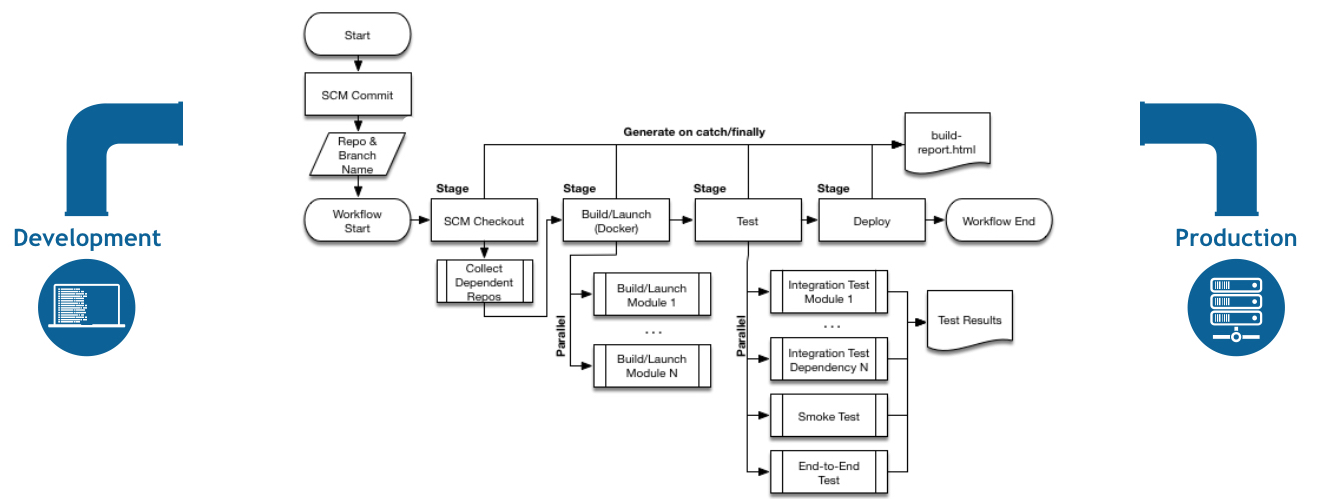
대부분 위와 같은 형태의 CI/CD 를 구성한다.Directive pipeline 을 통해 쉽게 위 그림과 같은 환경 구축할수있다.
Jenkins 설치
https://hub.docker.com/r/jenkins/jenkins
도커를 사용해 jenkins를 설치한다.
50000 포트는 Jenkins 마스터와 통신하기 위한 포트
1
2
3
4
5
6
7
docker pull jenkins/jenkins:jdk17 docker run -d -p 8080:8080 -p 50000:50000 \ -e JENKINS_OPTS="--prefix=/jenkins" \ --name myjenkins jenkins/jenkins docker exec -it -u root myjenkins cat /var/jenkins_home/secrets/initialAdminPassword
SSH 서버 연동 1 2 3 4 5 6 7 8 ssh-keygen -t rsa -b 4096 -f ~/.ssh/id_rsa_deploy_jenkins -C "jenkins@yourcompany" cat id_rsa_deploy_jenkins.pubecho "ssh-rsa AAAAB3NzaC1yc2EAAAADAQABAAABAQDf4xk2..." >> ~/.ssh/authorized_keys
Jenkins 연동
Jenkins 관리 - Credentials - System(global) - Add Credentails - SSH Username with private key
Private Key - Enter directly - Key (Add)
1 2 3 4 5 6 7 cat id_rsa_deploy_jenkins
만약 인증서 관련 오류가 발생할 경우 Jenkins 관리 - Security - Git Host Key Verification Configuration 에서 No verification 선택
username/password 형태의 git 연동에서도 ssl 인증서 오류가 발생할 수 있다.
Jenkins 관리 - System - Global Properties 에서 환경변수 [GIT_SSL_NO_VERIFY, false] 설정
Git Lab Token Access 방식으로 연동할 경우 Username with password 형태의 credentials 을 사용하고, username 에는 임의의 값, password 에는 Token 문자열을 입력해주면 된다.
Gitlab 연동 Access Token 을 통해 연동하는것을 권장
Account - User Settings - Access Tokens 에서 Access Token 생성
Jenkins 관리 - Credentials - System(global) - Add Credentails - Username with password 생성
Username, ID 는 기억하기 쉬운 문자열로 저장하고 Password 를 발급받은 Access Token 으로 저장.
SSH Pipeline Steps 플러그인 간단히 데모형태의 서비스를 로컬 컴퓨터에 배포할 때 SSH 를 통해 배포서버에 접속 후 명령을 실행시킬 수 있다.
SSH 관련 플러그인중 SSH Pipeline Steps 설치를 권장
SSH server
Publish Over SSH
설치된 플러그인들은 Jenkins Web UI 를 통해 사용 및 설정 가능하지만 개발자가 원하는 CI/CD 를 구성하기에는 한계가 있다.Jenkins Pipeline 을 통해 플러그인을 사용하고 CI/CD 를 처리한다.
1 2 3 4 5 6 7 8 9 10 11 12 13 14 15 16 17 18 19 20 21 22 23 24 25 26 27 28 29 30 31 32 33 34 35 36 37 38 39 40 41 42 43 44 45 46 47 48 49 50 51 52 53 54 55 56 57 58 59 60 61 62 63 def remote = [:]remote.name = "kouzie" remote.host = "192.168.0.127" remote.allowAnyHosts=true remote.fileTransfer = 'scp' pipeline { agent any environment { CRED=credentials('kouzie' ) } stages { stage('Checkout' ) { steps { git branch: 'mydomain' , credentialsId: 'kouzie_git' , url: 'https://mydomain.com/demo_project' } } stage('SCP Transfer' ) { steps { script { remote.user=env.CRED_USR remote.password=env.CRED_PSW } sshCommand(remote: remote, command: "rm -rf ~/demo_project" ) sshPut( remote: remote, from: "${env.WORKSPACE}" , into: '~/demo_project/' ) } } stage('Docker Build' ) { steps { script { remote.user=env.CRED_USR remote.password=env.CRED_PSW } sshCommand(remote: remote, command: "cd ~/demo_project/ && docker build -t demo_image ." ) } } stage('Docker Compose Up' ) { steps { script { remote.user=env.CRED_USR remote.password=env.CRED_PSW } sshCommand(remote: remote, command: "cd ~/demo_project && docker-compose up -d demo-service" ) } } } post { always { sleep 2 } } }
Jenkins Pipeline
https://www.jenkins.io/doc/book/pipeline/
Jenkins Pipeline 은 스크립트 형식의 언어를 사용하여 프로그래밍 형식으로 CI/CD 를 지원한다.
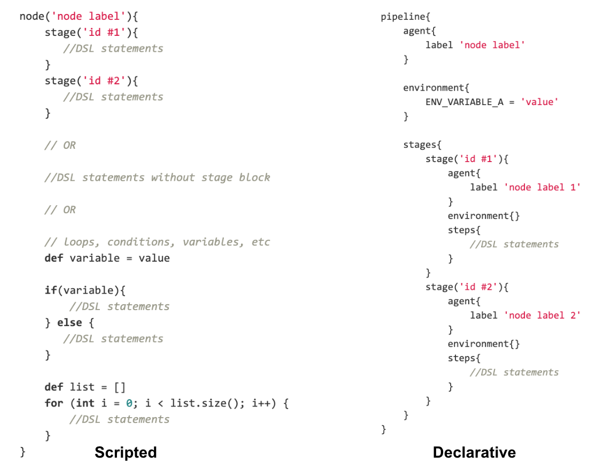
Jenkins Pipeline 에서 제공하는 언어는 아래 2가지
Declarative Pipeline : DSL 기반 스크립트 작성 Scripted Pipeline : Groovy 기반 스크립트 작성
Declarative Pipeline 이 최신 문법이며 대부분의 경우 더 간결하고 유지보수가 쉬운 Declarative Pipeline 사용을 권장한다.
복잡한 로직또한 Declarative Pipeline 의 script 블럭을 통해 처리가능하기 때문에 어떤걸 사용하던지 상관 없지만, 사용방법이 좀 더 간결하고 Jenkins 에서 좀더 더 지원하는 Declarative Pipeline 사용을 권장한다.
그외의 두 차이점에 대해 리뷰한 영상도 있으니 참고https://www.youtube.com/watch?v=GJBlskiaRrI
Declarative Pipelinehttps://www.youtube.com/watch?v=JPDKLgX5bRg https://www.jenkins.io/doc/book/pipeline/syntax/#declarative-pipeline/
Scripted Pipelinehttps://www.jenkins.io/doc/book/pipeline/syntax/#scripted-pipeline
Jenkins 에서 제공하는 Syntax 사용을 강제하다보니 오류발생 가능성이 적고 간결하게 구성가능하다.
1 2 3 4 5 6 7 8 9 10 11 12 13 14 15 16 17 18 19 20 21 22 23 24 25 26 27 28 29 30 31 32 33 34 35 36 37 38 39 pipeline { agent any stages { stage('Build' ) { agent any steps { echo 'start!' sh 'make' } post { success { echo "build success" } failure { echo "build failed" } always { echo "alway" } cleanup { echo "after all other post condtion" } } } stage('Test' ) { when { branch "dev" envrionment name: "PROFILE" , value: "dev" steps { sh 'make check' junit 'reports/**/*.xml' } } } stage('Deploy' ) { steps { echo "Deploying...." } } } }
1 2 3 4 5 6 7 8 9 10 11 12 node { stage('Example' ) { try { sh 'exit 1' } catch (exc) { echo 'Something failed, I should sound the klaxons!' throw } } }
environment job - Pipeline Syntax 페이지에 가면 현재 Jenkins 에서 사용가능한 global env 를 확인할 수 있다.
global env
설명
JOB_NAME
job 이름
JOB_URL
job URL
BUILD_URL
job 의 build URL
BUILD_NUMBER
현재 build number.
JENKINS_URL
jenkins URL
BRANCH_NAME
브랜치명, multibranch 프로젝트인 경우 사용
WORKSPACE
브랜치명, multibranch 프로젝트인 경우 사용
CHANGE_ID
PR number, multibranch 프로젝트인 경우 사용
1 2 3 4 5 6 7 8 9 10 11 12 13 14 15 16 17 18 19 20 21 22 23 24 25 26 27 28 29 30 31 32 33 34 35 pipeline { agent any options { disableConcurrentBuilds() } triggers { pollSCM('H/2 * * * *' ) } environment { CC = 'clang' HELLO = """${sh( returnStdout: true, script: 'echo "hello_world"' )}""" } stages { stage('print global env' ) { steps { echo env.JOB_NAME echo env.JOB_URL echo env.BUILD_URL echo env.BUILD_NUMBER echo env.JENKINS_URL echo env.BRANCH_NAME echo env.WORKSPACE } } stage('print local env' ) { steps { echo CC echo "hi ${HELLO}" } } } }
currentBuild
https://www.youtube.com/watch?v=gcUORgHuna4
현재 실행 중인 파이프라인에 대한 빌드 정보 객체 job - Pipeline Syntax 페이지에 가면 현재 Jenkins 에서 사용가능한 currentBuild 설명을 볼 수 있다.
변수명
설명
currentResult
number
빌드 번호, BUILD_NUMBER 와 동일
displayName
출력된 빌드 번호
projectName
프로젝트명
getBuildCauses
빌드 유발한 json 정보
previousBuild
이전 빌드 정보 객체
1 2 3 4 5 6 7 8 9 10 11 12 13 14 15 16 17 18 19 20 21 22 23 24 25 26 27 28 29 30 31 32 33 34 35 pipeline { agent any options { disableConcurrentBuilds() } triggers { pollSCM('H/2 * * * *' ) } stages { stage('print currentBuild' ) { steps { echo "currentResult ${currentBuild.currentResult}" echo "number ${currentBuild.number}" echo "displayName ${currentBuild.displayName}" echo "projectName ${currentBuild.projectName}" echo "previousBuild displayName ${currentBuild.previousBuild.displayName}" script { currentBuild.result = "SUCCESS" } echo "result ${currentBuild.result}" } } stage('print currentBuild.getBuildCauses' ) { steps { echo "causes ${currentBuild.getBuildCauses()}" echo "specificCause ${currentBuild.getBuildCauses('hudson.model.Cause$UserIdCause')}" } } } }
getBuildCauses 의 경우 직접 build 버튼을 눌렀을 때 출력값과 pollSCM 으로부터 실행된 출력값이 다르게 나옴.
currentBuild.changeSets
https://javadoc.jenkins.io/plugin/git/hudson/plugins/git/GitChangeSetList.html https://javadoc.jenkins.io/plugin/git/hudson/plugins/git/GitChangeSet.html https://javadoc.jenkins.io/hudson/scm/ChangeLogSet.html https://javadoc.jenkins.io/hudson/scm/ChangeLogSet.AffectedFile.html
git plugins 에 구현된 객체로 [GitChangeSetList, GitChangeSet] 등이 있으며,
1 2 3 4 5 6 7 8 9 10 11 12 13 14 15 16 17 18 19 20 21 22 23 24 25 26 27 28 29 30 31 32 pipeline { agent any options { disableConcurrentBuilds() } triggers { pollSCM('H/2 * * * *' ) } stages { stage('print currentBuild.changeSets' ) { steps { script { def changeLogSets = currentBuild.changeSets for (int i = 0 ; i < changeLogSets.size(); i++) { def entries = changeLogSets[i].items for (int j = 0 ; j < entries.length; j++) { def entry = entries[j] def files = new ArrayList(entry.affectedFiles) for (int k = 0 ; k < files.size(); k++) { def file = files[k] echo "filepath: ${file.path}, editType:${file.editType.name}" } } } } } } } }
Groovy CPS Jenkins Pipeline 은 Groovy CPS(연속전달스타일: Continuation Passing Style) 라는 라이브러리를 사용하여 특수한 인터프리터 내에서 스크립트를 실행시킨다.Jenkins Pipeline 의 Groovy 코드는 CPS 변환을 통해 실행 상태를 디스크에 저장해가면서 코드를 실행시켜나간다.
이때 CPS 변환 제한하는 Groovy 코드가 있는데, 아래와 같은 코드는 CPS 변환 과정에서 오류를 발생시킨다.
1 2 3 4 5 6 7 8 9 10 def sortByLength(List<String> list) { list.toSorted { a, b -> Integer.valueOf(a.length()).compareTo(b.length()) } } ... script { def sorted = sortByLength(['333' , '1' , '4444' , '22' ]) echo(sorted.toString()) }
list.toSorted 내부의 클로저는 CPS 변환이 되었지만 Iterable.toSorted 자체는 CPS 변환이 이루어지지 않는다.
이런 이유 때문에 아래와 같이 함수 외부에 @NonCPS 어노테이션을 사용해서 스크립트 전체가 CPS 변환 에서 벗어나는 방법을 사용한다.
1 2 3 4 @NonCPS def sortByLength(List<String> list) { ... }
Multi module gradle build 아래와 같은 gradle multi module 프로젝트 구조를 가지고 있는 상태에서 연관 모듈이 변경되었을 때 Jenkins pipeline 에서 서비스를 빌드하는 방법을 알아본다.
1 2 3 4 5 6 7 8 9 10 11 12 13 14 15 16 17 18 19 20 21 ./gradlew projects > Task :projects ------------------------------------------------------------ Root project 'demo' ------------------------------------------------------------ Root project 'demo' +--- Project ':boot' | +--- Project ':boot:core' | | \--- Project ':boot:core:web' | \--- Project ':boot:service' | +--- Project ':boot:service:book' | +--- Project ':boot:service:customer' | \--- Project ':boot:service:dashboard' \--- Project ':data' +--- Project ':data:book-data' +--- Project ':data:customer-data' \--- Project ':data:reply-data'
서비스들은 아래와 같이 data 모듈들과 의존관계를 가지고 있다.
1 2 3 4 5 6 7 8 9 10 11 12 13 14 15 16 17 18 19 project(":boot:service:customer" ) { dependencies { implementation(project(":data:customer-data" )) } } project(":boot:service:book" ) { dependencies { implementation(project(":data:book-data" )) } } project(":boot:dashboard" ) { dependencies{ implementation(project(":data:book-data" )) implementation(project(":data:customer-data" )) } }
모듈 관계조회 메서드 :data:xxx 모듈이 변경되었을 때 의존성이 있는 서비스만 CI/CD 되어야 하기 때문에 아래와 같이 의존성을 파악할 수 있는 함수를 gradle 에 정의.
1 2 3 4 5 6 7 8 9 10 11 12 13 14 15 16 17 18 19 20 21 22 23 24 25 26 27 28 29 30 31 32 33 34 35 36 37 38 39 40 41 42 43 44 45 46 47 48 fun getAffectedServices (vararg input: String ) val result = mutableSetOf<String>() val services: List<Project> = rootProject.allprojects.filter { it.path.startsWith(":boot:service:" ) } services.forEach { service -> val visitedPaths = HashSet<String>() val q: LinkedList<Project> = LinkedList() q.add(service) while (!q.isEmpty()) { val project = q.poll() if (input.contains(project.path)) { result.add(service.path) return @forEach } visitedPaths.add(project.path) project.configurations["implementation" ].dependencies .filterIsInstance<ProjectDependency>() .map { it.dependencyProject } .filter { !visitedPaths.contains(it) } .forEach { q.add(it) } } } return result } tasks.register("getAffectedServices" ) { val inputs: List<String> = project.findProperty("modules" )?.toString()?.split("," ) ?: emptyList() doLast { val services = getAffectedServices(*inputs.toTypedArray()) println(services.joinToString("," )) } } tasks.register("getAllServices" ) { doLast { val services = rootProject.allprojects .filter { it.path.startsWith(":boot:service:" ) } .map { service -> service.path } .toSet() println(services.joinToString("," )) } }
1 2 3 4 5 6 7 ./gradlew -q getAllServices ./gradlew -q getAffectedServices -Pmodules=:data:customer-data,:data:book-data
CI Pipeline 먼저 변경된 모듈 목록을 알려면 변경된 file 리스트를 알아야한다.currentBuild.changeSets 를 사용해서 해당 커밋에 변경된 목록을 알 수 있다.
1 2 3 4 5 6 7 8 9 10 11 12 13 14 15 16 17 18 @NonCPS def getChanges() { def changes = [] def changeLogSets = currentBuild.changeSets for (int i = 0 ; i < changeLogSets.size(); i++) { def entries = changeLogSets[i].items for (int j = 0 ; j < entries.length; j++) { def entry = entries[j] def files = new ArrayList(entry.affectedFiles) for (int k = 0 ; k < files.size(); k++) { def file = files[k] changes.add(file.path) } } } return changes }
1 2 3 4 5 6 7 8 9 10 11 12 13 14 15 16 17 18 19 20 21 22 23 24 25 26 27 28 29 30 31 32 33 34 35 36 37 38 39 40 41 42 43 44 45 46 47 48 49 50 51 52 53 54 55 56 57 58 59 60 61 62 63 64 65 66 67 68 69 70 71 72 73 74 75 76 77 78 def affectedServices = []pipeline { agent any options { disableConcurrentBuilds() } triggers { pollSCM('H/2 * * * *' ) } environment { CREDENTIALS_ID = 'credential_docker_hub' } stages { stage('get affected services' ) { steps { script { if (currentBuild.getBuildCauses('hudson.model.Cause$UserIdCause' ).size() > 0 ) { def outputs = sh(script: "./gradlew -q getAllServices" , returnStdout: true ).trim() echo "output result: $outputs" affectedServices = outputs.split(',' ) return } echo 'generate chage list' def changes = getChanges() def modulePaths = new HashSet<String>() for (def change : changes) { if (change.endsWith("build.gradle.kts" )) { def outputs = sh(script: "./gradlew -q getAllServices" , returnStdout: true ).trim() echo "output result: $outputs" affectedServices = outputs.split(',' ) break } else { if (change.startsWith("boot" )) { def cs = change.split("/" ) if (cs != null && cs.size() >= 3 ) { def modulePath = cs[0. .2 ].join(':' ) modulePaths.add(":" + modulePath) } } else if (change.startsWith("data" )) { def cs = change.split("/" ) if (cs != null && cs.size() >= 2 ) { def modulePath = cs[0. .1 ].join(':' ) modulePaths.add(":" + modulePath) } } } } if (modulePaths.size() != 0 ) { def inputs = modulePaths.join(',' ) def outputs = sh(script: "./gradlew -q getAffectedServices -Pmodules=${inputs}" , returnStdout: true ).trim() echo "output result: $outputs" affectedServices = outputs.split(',' ) } echo "affectedServices: $affectedServices" } } } stage('build affected services' ) { steps { script { withCredentials([usernamePassword(credentialsId: CREDENTIALS_ID, passwordVariable: 'CREDENTIALS_PASSWORD' , usernameVariable: 'CREDENTIALS_USERNAME' )]) { for (def service in affectedServices) { echo "${service} build start" def command = service + ":jib" sh "./gradlew clean ${command} -PdhUsername=${CREDENTIALS_USERNAME} -PdhPassword=${CREDENTIALS_PASSWORD}" echo "${service} build end" } } } } } } }
아쉬운점은 directory 구조를 module path 로 변환하는 과정이 번거롭고 하드코딩이 일부 추가되어 있다는 점.
데모 코드
https://github.com/Kouzie/kotlin-multi-module-demo